すみだ向島EXPO · 出展者向け

アプリでプログラムを編集するArtist guide: edit your programme in the LIMBO app

参加アーティストの方は、LIMBO アプリで、ご自分のプログラムの写真や紹介文を編集したり、その日の開催を中止にしたりできます。Festival artists can edit their programme's photos, text and today's status in the LIMBO app.

来場者の方は、こちらからアプリを入れてください。Visiting the EXPO? Get the app here.

01

インストールとログインGet the app and sign in

LIMBO アプリをインストールし、参加フォームに記入したメールアドレスでログインします。パスワードは不要です。Install "LIMBO" and sign in with the email address from your entry form. There is no password.

LIMBO アプリをインストール Get the app
LIMBO アプリのQRコード

パソコンでご覧の方は、このQRコードをスマホで読み取ってください。インストール済みの方は、最新版にアップデートしてください。On a computer? Scan this with your phone. Already have the app? Update it.

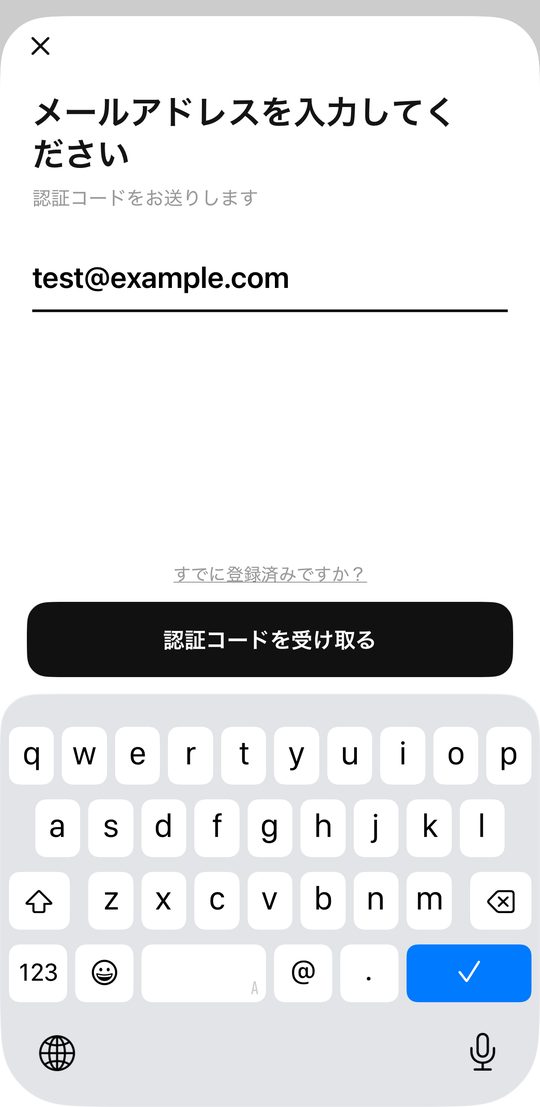
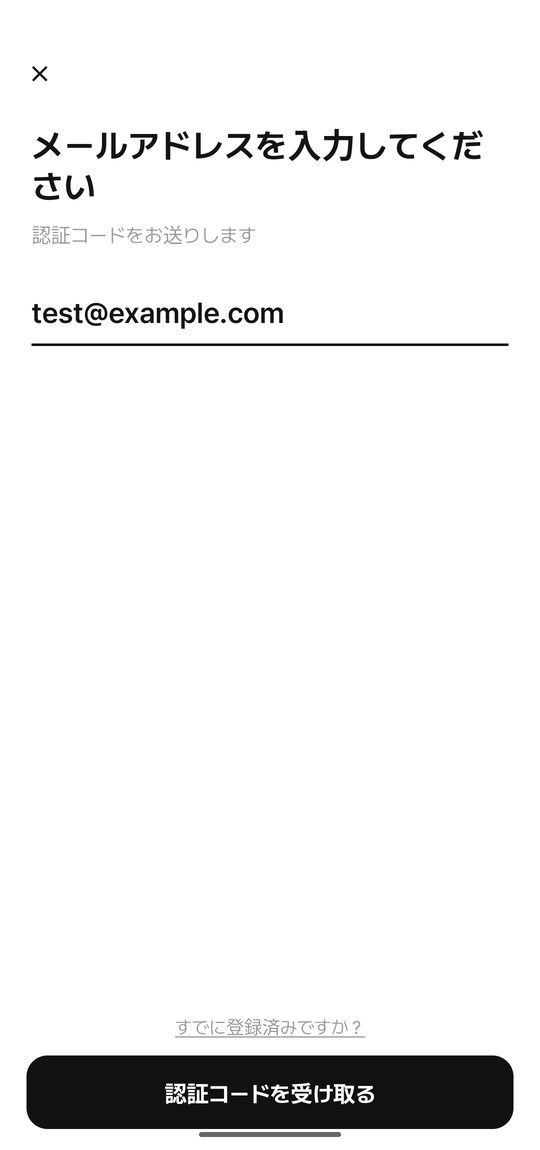
メールアドレスの入力
iPhone
メールアドレスの入力(Android)
Android
  1. 最初の画面の メールではじめる、または いちばん右のタブの ログイン を押すTap メールではじめる (start with email) on the first screen, or ログイン on the right-most tab
  2. 参加フォームのメールアドレスを入力して 認証コードを受け取る を押すEnter your entry-form email and tap 認証コードを受け取る (get a code)
  3. メールで届いた6桁のコードを入力するEnter the 6-digit code from the email

別のメールアドレスでログインすると、ご自分のプログラムは表示されません。地図の「すみだ向島」マークを押すと、すみだ向島EXPOの地図が開きます。A different address won't show your programme. Tap the すみだ向島 mark on the map to see the festival map.
02

編集画面の開き方Where to edit

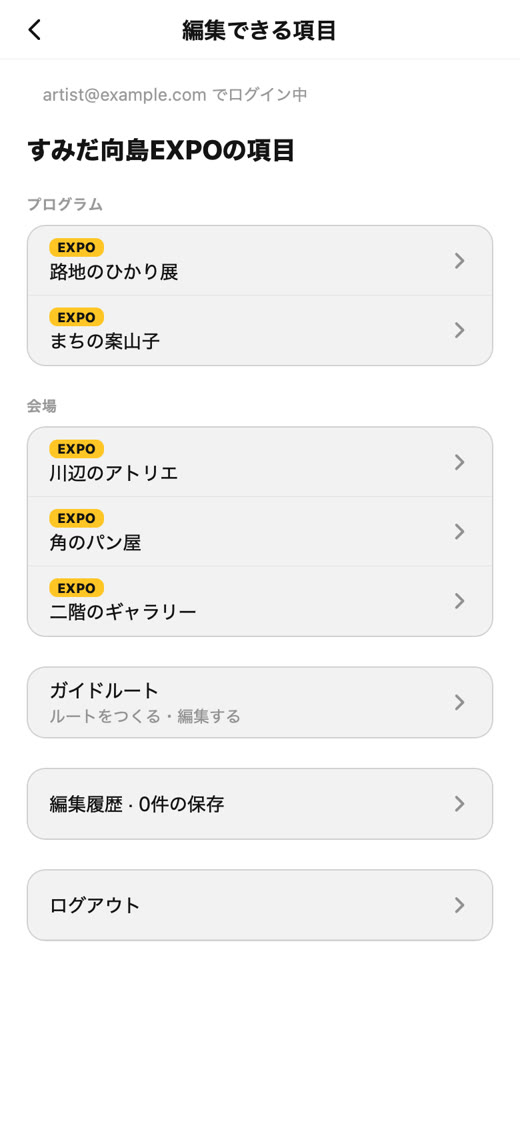
EXPOメニューの「編集」を押すと「編集できる項目」が開き、あなたが編集できるプログラムと会場が表示されます。編集 in the EXPO menu opens 編集できる項目 (editable items): the programmes and venues you can edit.

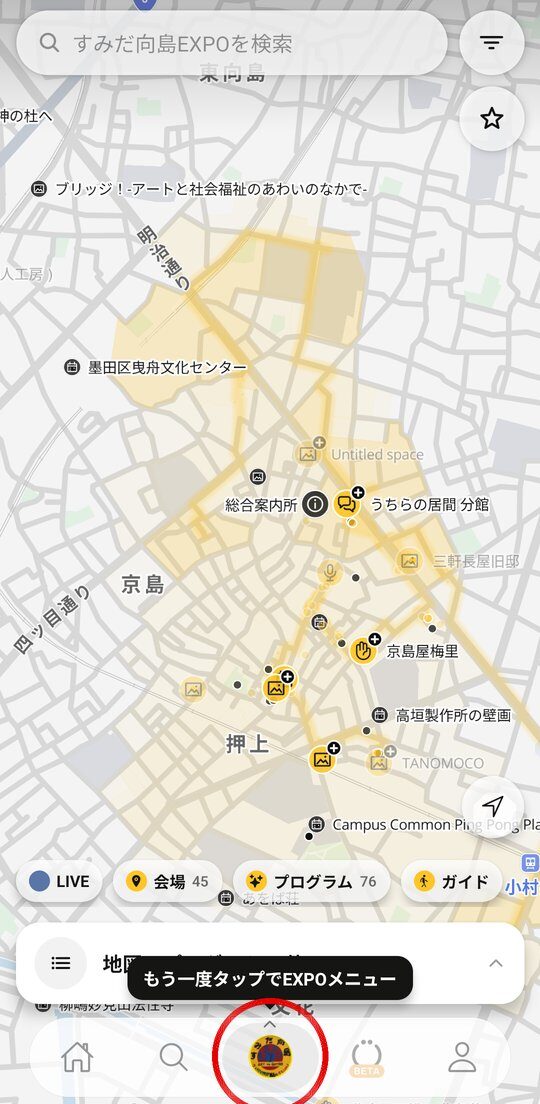
EXPOモードの地図:下のEXPOバッジをもう一度タップ
EXPOバッジ
  1. EXPOモードの地図で、下のEXPOバッジ(地図タブ)をもう一度タップIn EXPO mode, tap the EXPO badge (the map tab) at the bottom once more.
  2. 開いたEXPOメニューで 編集 をタップIn the EXPO menu that opens, tap 編集 (edit).
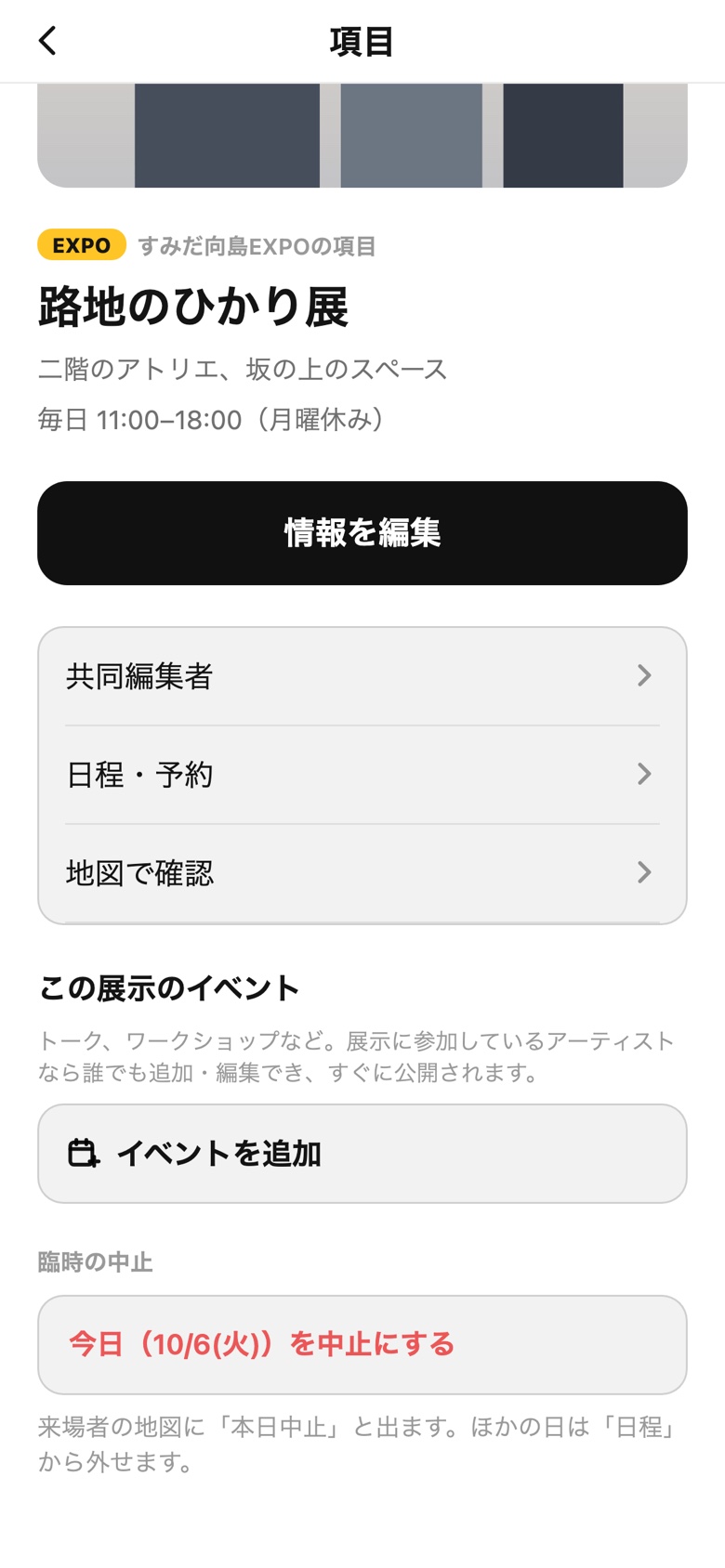
  3. 編集したいプログラムを押すと、そのプログラムのページが開きます。Tap a programme to open its page.

メニューに「編集」がないときや、一覧にプログラムが表示されないときは、参加フォームと同じメールアドレスでログインしているか確認してください。それでも表示されない場合は、運営にご連絡ください。No 編集 in the menu, or nothing listed? Check you used your entry-form email, then contact us.

編集できる項目
編集できる項目

開くと、あなたのプログラムと会場が表示されます。It opens the list of your programmes and venues.

03

編集できる内容What you can edit

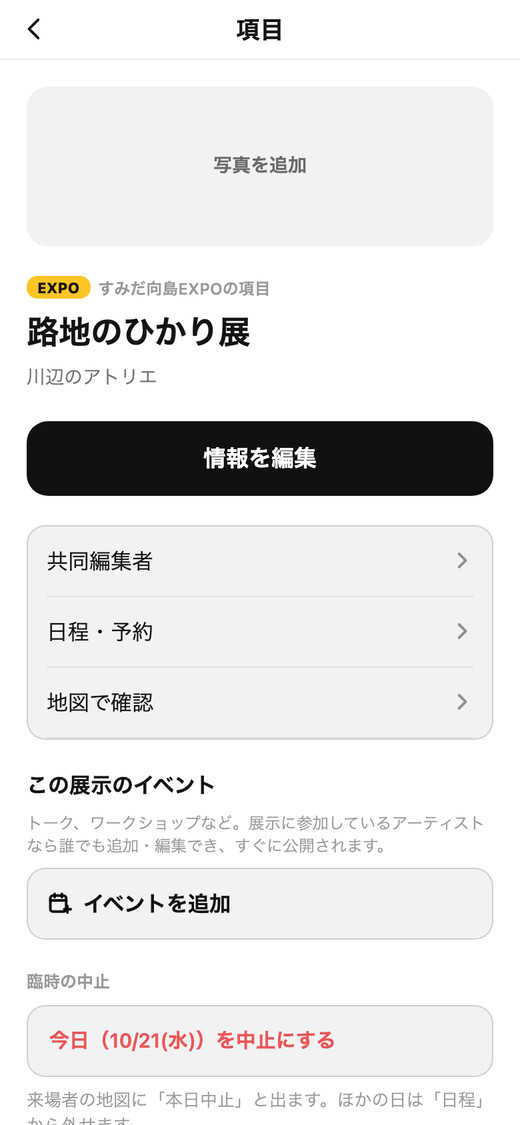
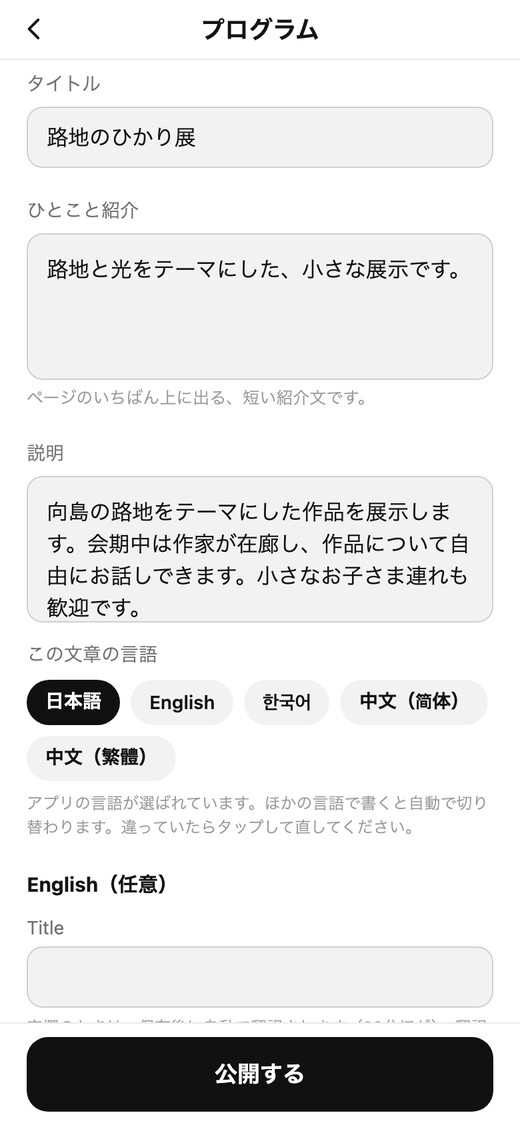
プログラムのページの 情報を編集 を開き、内容を変えて 公開する を押すと、すぐに公開されます。保存しないまま戻ろうとすると、変更を保存するかどうか確認されます。On your programme page, tap 情報を編集 (edit), make changes and tap 公開する (publish). It goes live straight away. If you go back without saving, it asks whether to save your changes.

プログラムのページ
プログラムのページ
情報を編集
情報を編集
  1. 写真:最大10枚。1枚目がカバーになります。EXPOのページに出るのは「編集」→「写真」から追加した写真です。LIMBOの「記録」として投稿した写真は、EXPOのページには表示されません。写真は追加・並べ替え・削除した時点で保存されます(公開するは不要)。Photos: up to 10. The first one is the cover. Only photos added under 編集 → 写真 appear on your EXPO page; photos posted as a LIMBO 記録 (record) are not shown there. Photos are saved as soon as you add, reorder or delete them (no need to tap 公開する).
  2. ひとこと紹介:ページの冒頭に表示される短い紹介文。Short intro (ひとこと紹介): the line at the top of your page.
  3. 説明:プログラムのくわしい説明。Description (説明): the full text.
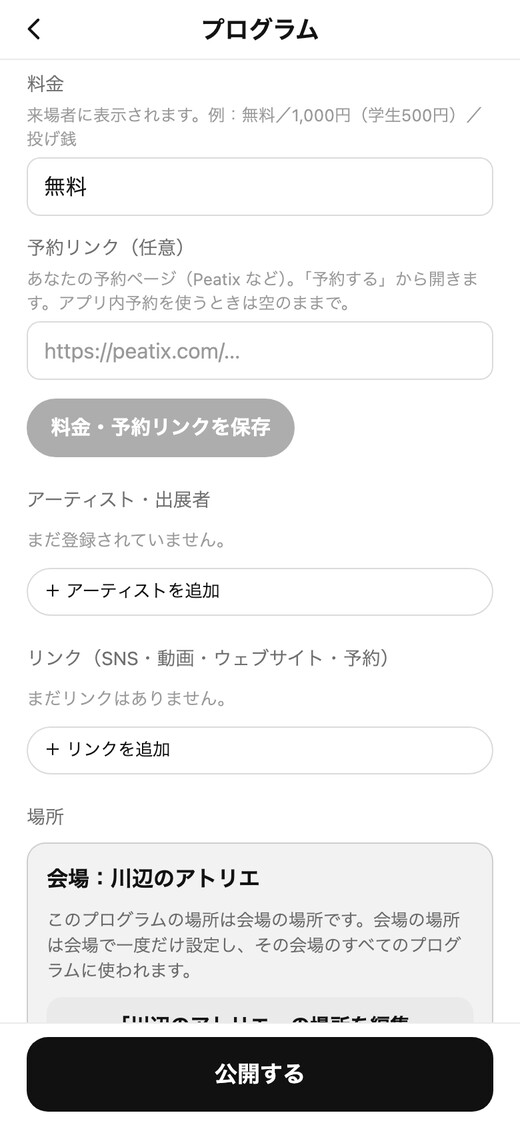
  4. 料金・予約リンク:料金は来場者に表示されます(例:無料、1,000円)。Peatix などご自分の予約ページがあれば、予約リンクに入れると「予約する」から開きます。この2つは 料金・予約リンクを保存 で保存します。Price and booking link: the price is shown to visitors (e.g. 無料, 1,000円). If you have your own booking page (Peatix etc.), add it as the booking link and 予約する opens it. Save these two with 料金・予約リンクを保存.
  5. アーティスト・リンク:+ アーティストを追加 で参加アーティストの名前を、+ リンクを追加 でSNS・動画・ウェブサイトのリンクを追加できます。Artists and links: + アーティストを追加 adds an artist's name; + リンクを追加 adds a social, video or website link.
  6. 地図のピン:「情報を編集」の「場所(地図のピン)」で会場を選ぶか、地図上で位置を合わせます。Map pin: under 場所(地図のピン), pick a venue or set the spot on the map.
  7. 臨時の中止:その日だけ休むときは、プログラムのページで 今日を中止にする を押します。来場者の地図に「本日中止」と表示されます。中止を取り消す で元に戻せます。Closed today: tap 今日を中止にする on your programme page; visitors see "cancelled today". 中止を取り消す undoes it.

日本語で書くと、英語・韓国語・中国語に自動で翻訳されます。日程と時間は、次の「日程とイベント」で変更できます。Write in Japanese and it is translated into English, Korean and Chinese automatically. Days and times: see the next section.

料金・予約リンク、アーティスト、リンク
料金・リンク

「情報を編集」を下にスクロールすると、料金・予約リンク、アーティスト、リンクの欄があります。Scroll down in 情報を編集 for price, booking link, artists and links.

04

日程とイベントDays, times and events

開催日と時間、トークやワークショップなどのイベントは、ご自分で追加できます。展示もイベントも、同じ「日程・予約」の画面で日程を設定します。保存した内容はすぐに公開されます。Set your opening days and hours, and add events such as talks or workshops yourself. The exhibition and each event use the same 日程・予約 screen. Changes go live as soon as you save.

プログラムのページの「日程・予約」
日程・予約
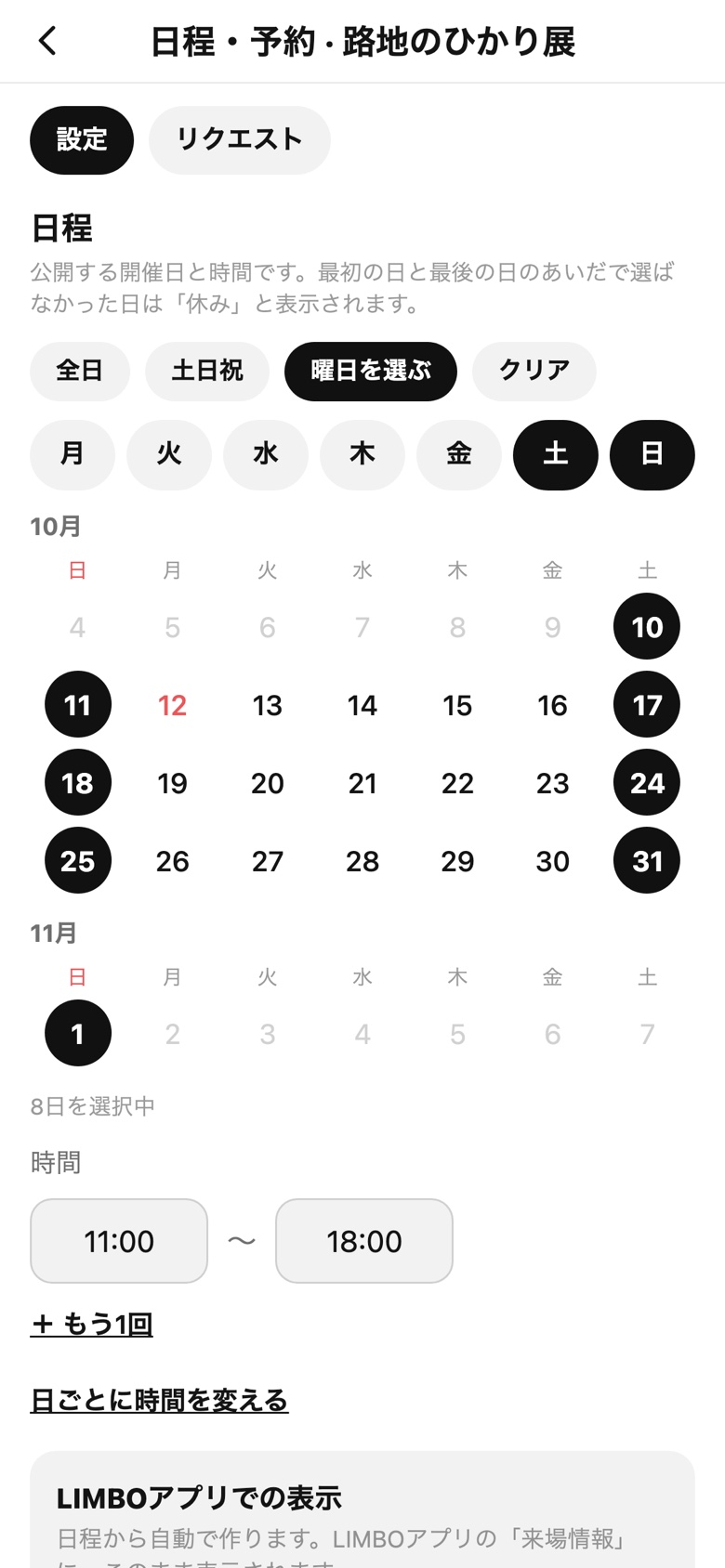
日程:日にちと時間を選んで保存
日程

開催日と時間Opening days and hours

  1. プログラムのページで 日程・予約 を開くOn your programme page, open 日程・予約 (days & booking).
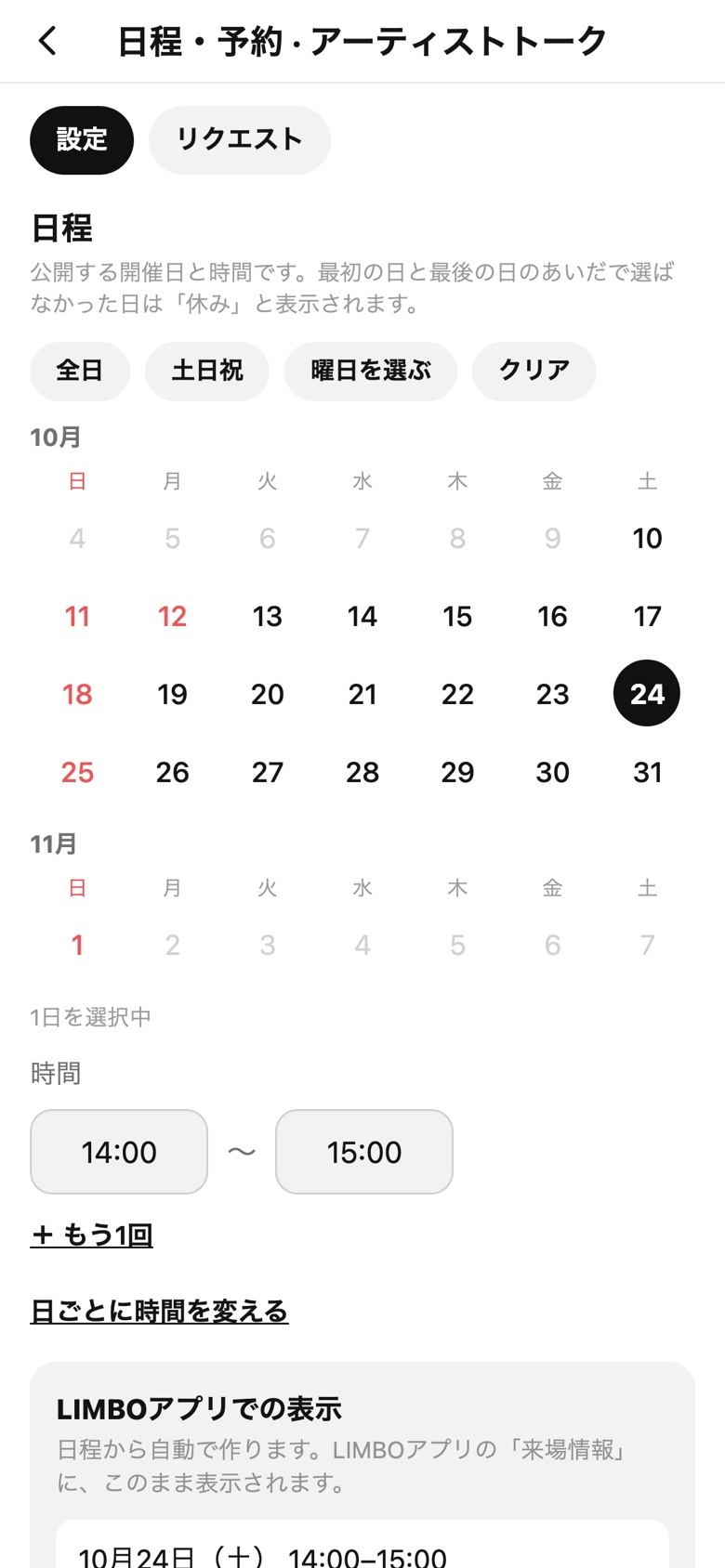
  2. 「日程」で開催日を選ぶ。全日 土日祝 曜日を選ぶ でまとめて選べます。カレンダーの日付をタップすると、1日ずつ追加・解除もできます。Under 日程, choose the days you are open. 全日 (every day), 土日祝 (weekends & holidays) or 曜日を選ぶ (pick weekdays) fills them in one go; tap a day in the calendar to add or remove it.
  3. 「時間」で開始と終了を選び、日程を保存 を押す。最初の日と最後の日のあいだで選ばなかった日は「休み」と表示されます。Set the start and end time, then tap 日程を保存. Days you didn't pick between your first and last day show as closed (休み).
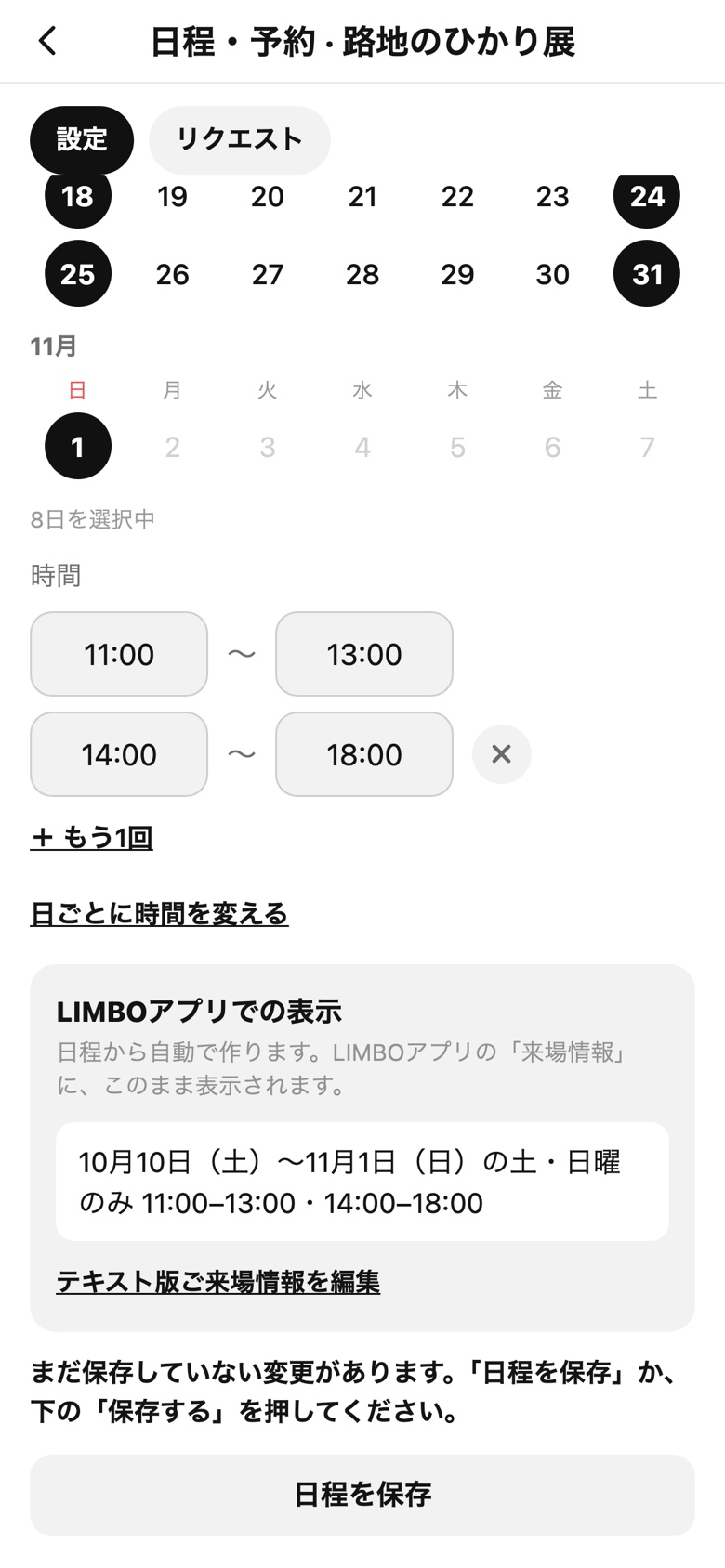
+ もう1回:1日に2回目の時間
+ もう1回
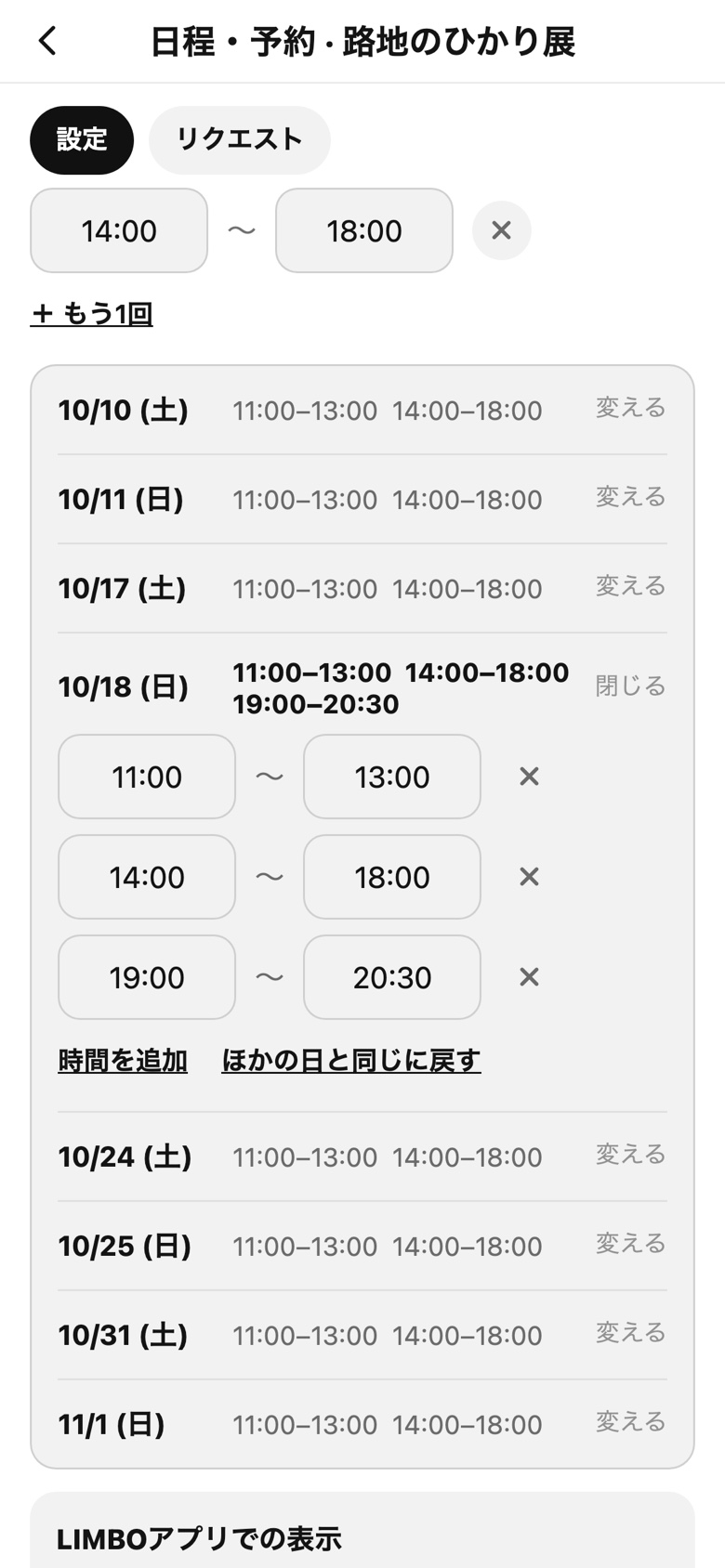
日ごとに時間を変える
日ごとに時間を変える

必要なときだけOnly if you need it

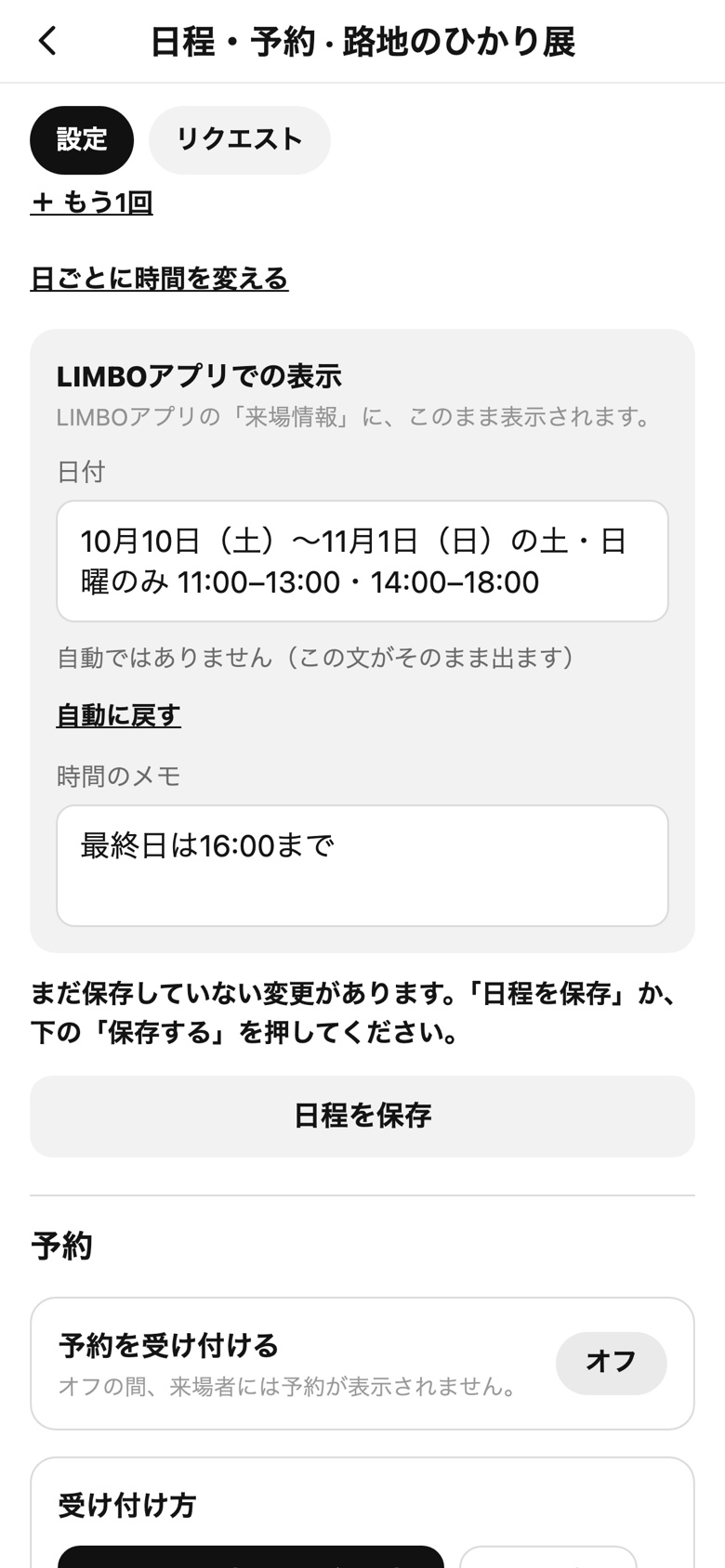
  1. + もう1回:すべての日に、2つめの時間帯を追加します(例:11:00〜13:00 と 14:00〜18:00)。+ もう1回 adds a second time on every day (e.g. 11:00–13:00 and 14:00–18:00).
  2. 日ごとに時間を変える:特定の日だけ時間が違うときに使います。その日の 変える で時間を変更するか、時間を追加 を押します。ほかの日と同じに戻す で元に戻ります。日ごとに時間を変える: for a day with different hours. Tap 変える on that day to change it or 時間を追加 (add a time); ほかの日と同じに戻す puts it back.

最後に 日程を保存 を押してください。Remember to tap 日程を保存 at the end.

LIMBOアプリでの表示:日程から自動で作られた文
自動の表示
テキスト版ご来場情報を編集:自動に戻す
自分で書く

LIMBOアプリでの表示How the LIMBO app shows it

  1. LIMBOアプリの「来場情報」に出る日付の文は、選んだ日程から自動で作られます。ふつうは何もしなくて大丈夫です。The date line the LIMBO app shows under 来場情報 is made from your days and times. Usually there is nothing to do.
  2. 自分の言葉で書きたいときは テキスト版ご来場情報を編集 を押し、「日付」と「時間のメモ」を書き換えます。To write it yourself, tap テキスト版ご来場情報を編集 and change 日付 (date) and 時間のメモ (time note).
  3. 書き換えた文は、日程を変えてもそのまま表示されます。自動の文に戻すときは 自動に戻す を押します。Your own text stays as written, even when the days change. 自動に戻す switches back to the automatic line.

ここも 日程を保存 で保存されます。This is saved with 日程を保存 too.

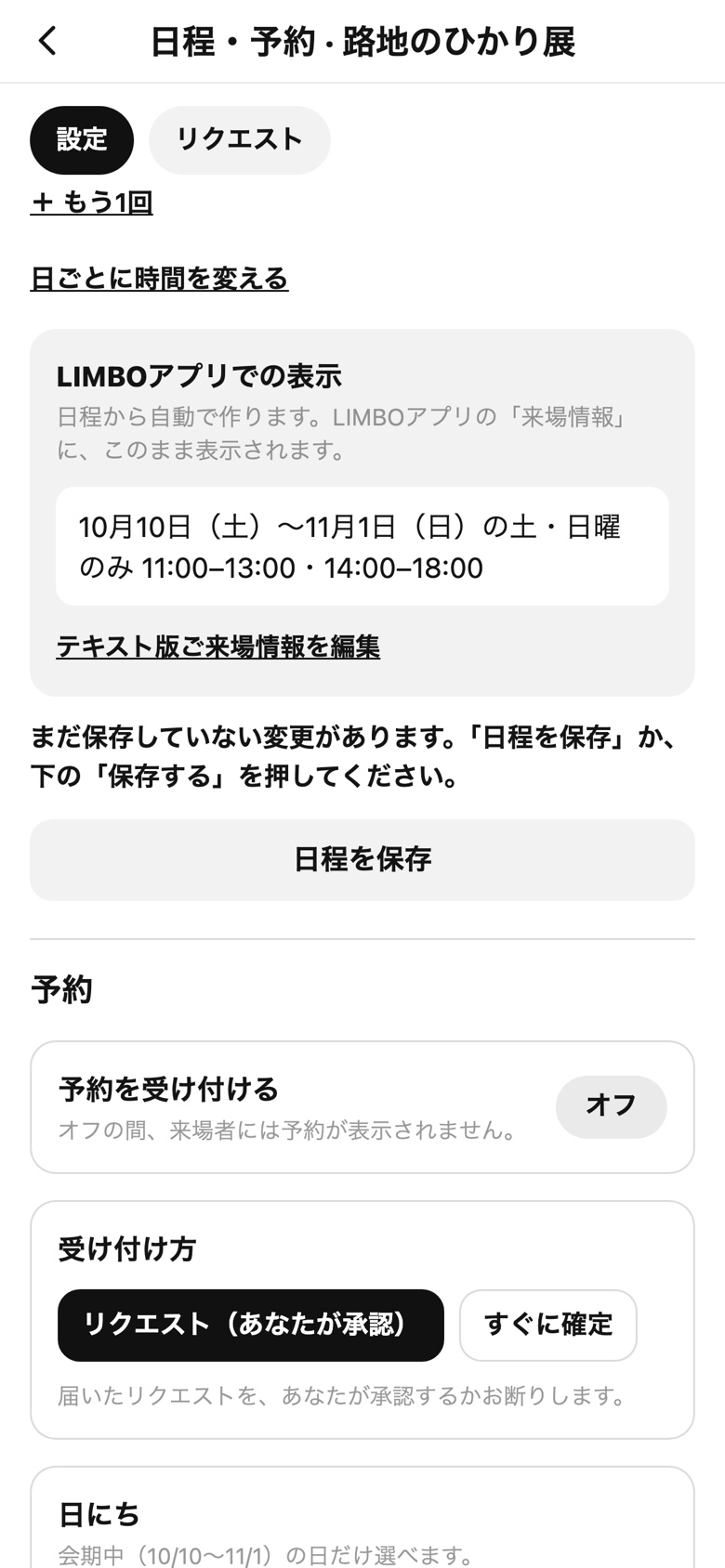
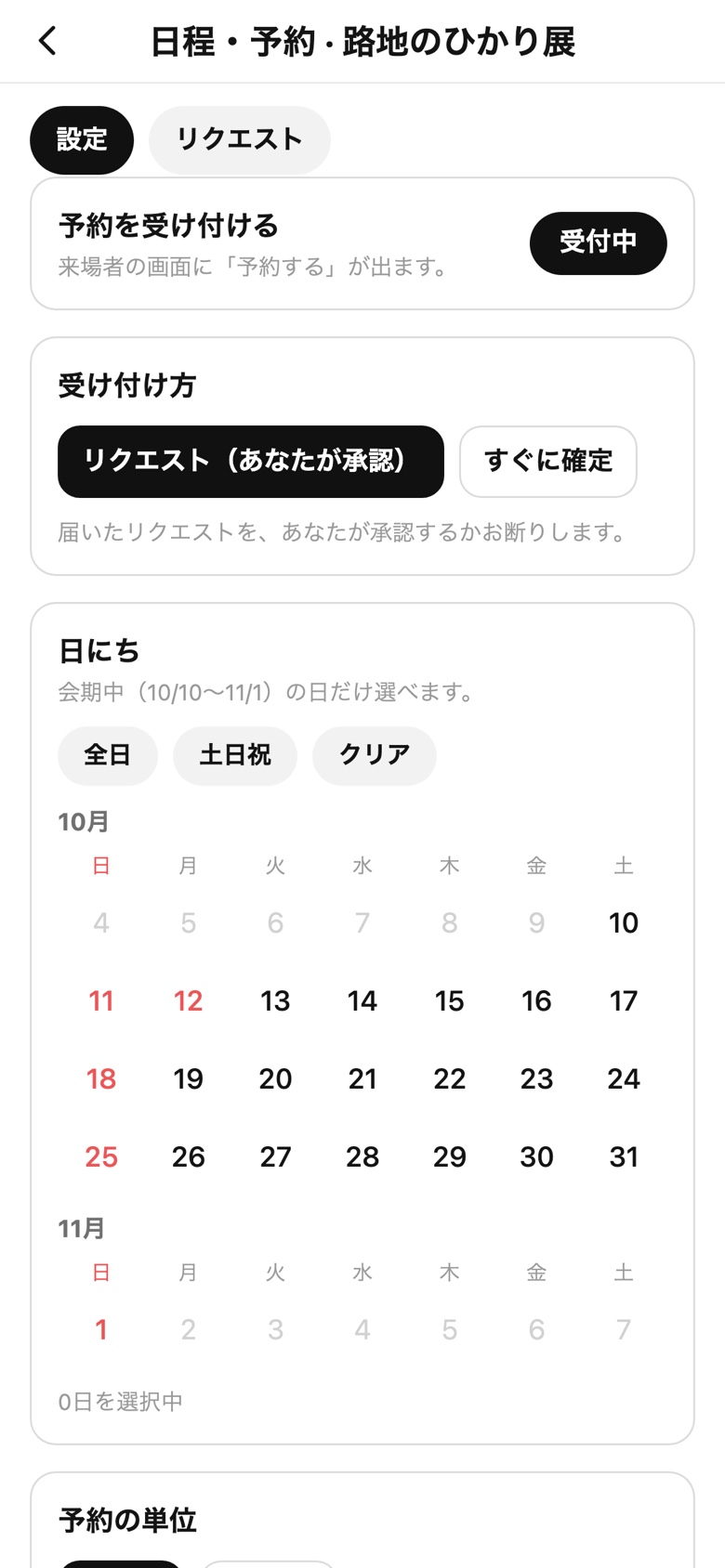
予約を受け付ける
予約(使うときだけ)

予約を受け付けたいときは、同じ画面の「予約」で 予約を受け付ける をオンにします。来場者の画面に「予約する」ボタンが表示されます。予約を使わない場合は、オフのままで構いません。Only if you want bookings: in the same screen, turn on 予約を受け付ける. Visitors then see a 予約する (book) button. If you don't need it, leave it off.

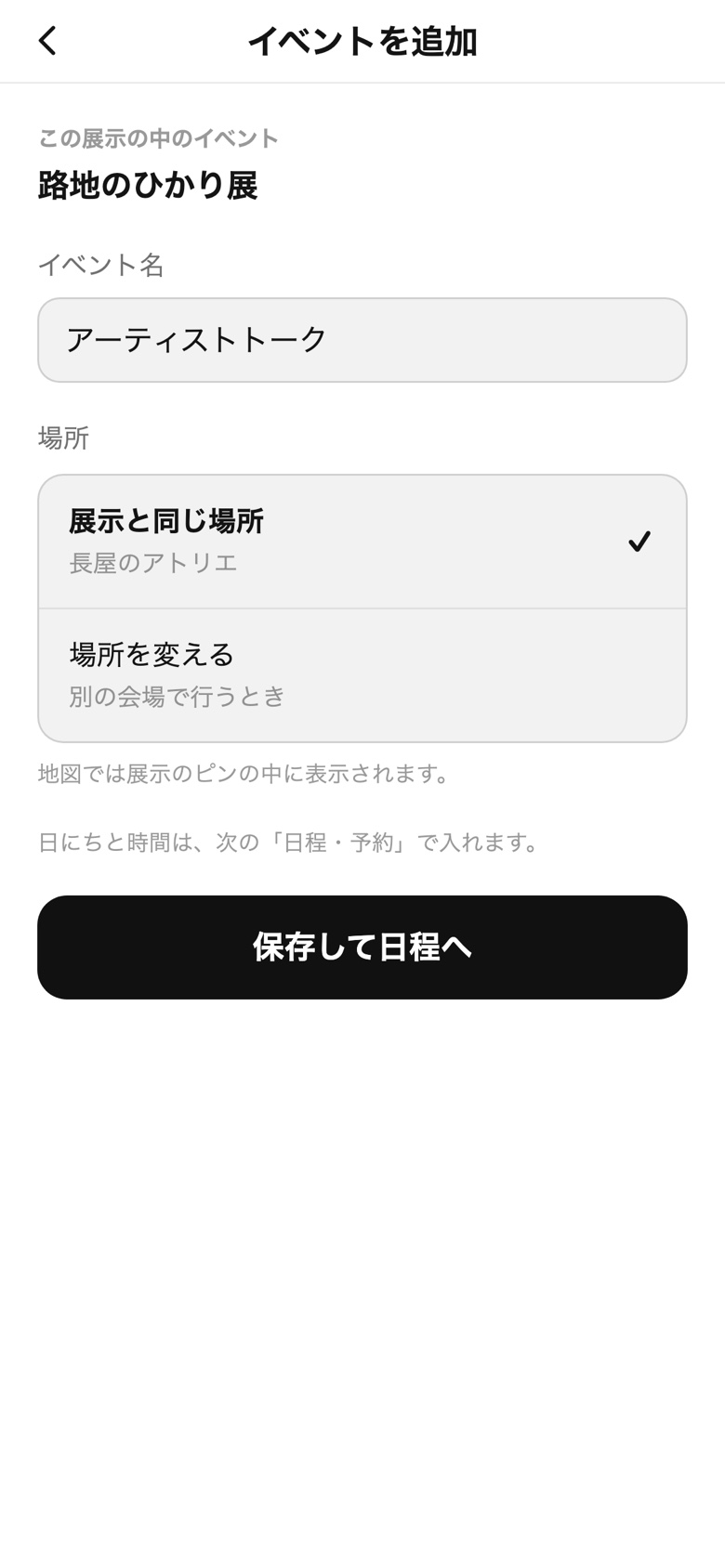
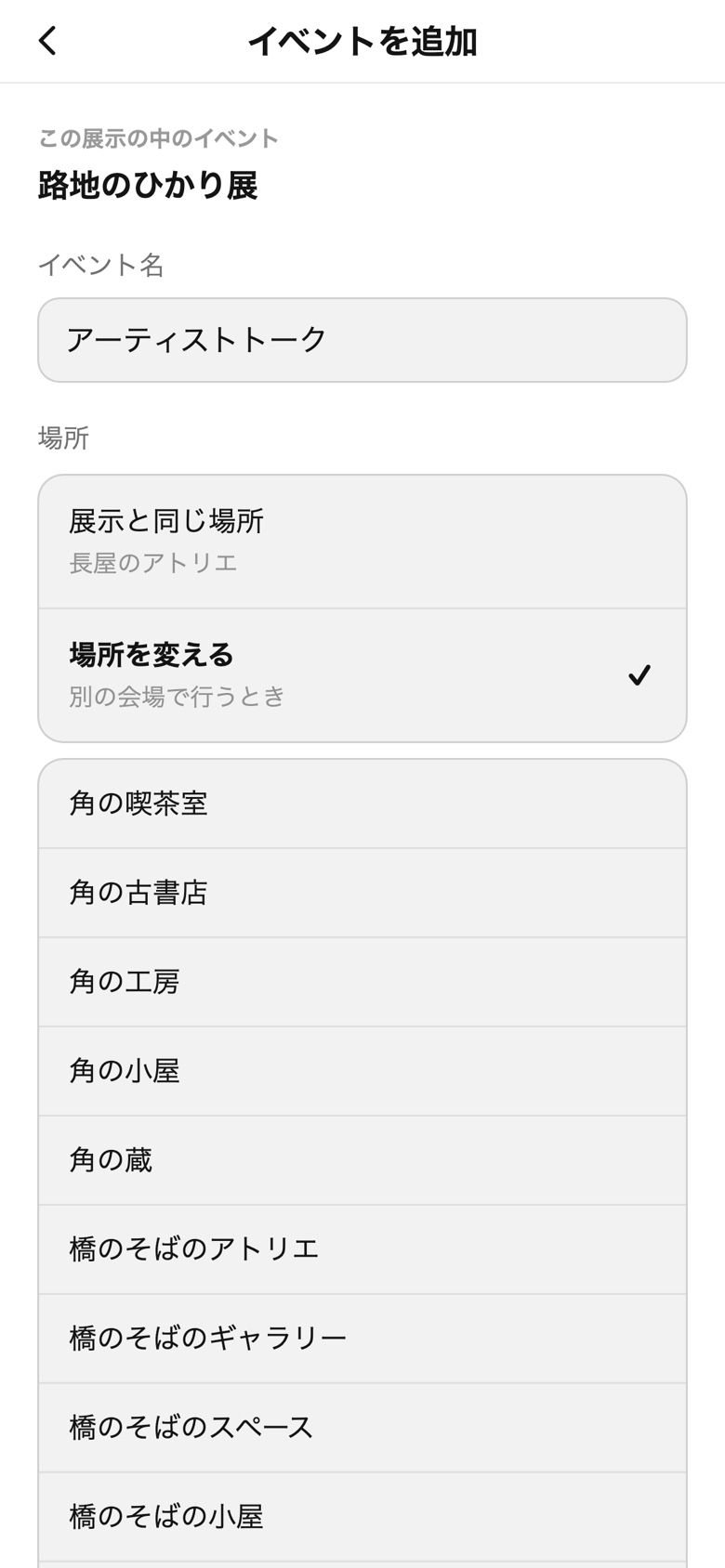
イベントを追加:イベント名と場所
イベントを追加
イベントの日程・予約
イベントの日程

イベントを追加するAdd an event

  1. プログラムのページの「この展示のイベント」で イベントを追加On your programme page, under この展示のイベント, tap イベントを追加 (add event).
  2. イベント名を入力し、場所を選んで(下の図)保存して日程へ を押すEnter the event name, choose the place (see below) and tap 保存して日程へ (save, then days).
  3. そのイベントの「日程・予約」が開きます。展示と同じように日付と時間を選んで 日程を保存 を押す。The event's own 日程・予約 opens. Pick its day and time as for the exhibition, then tap 日程を保存.

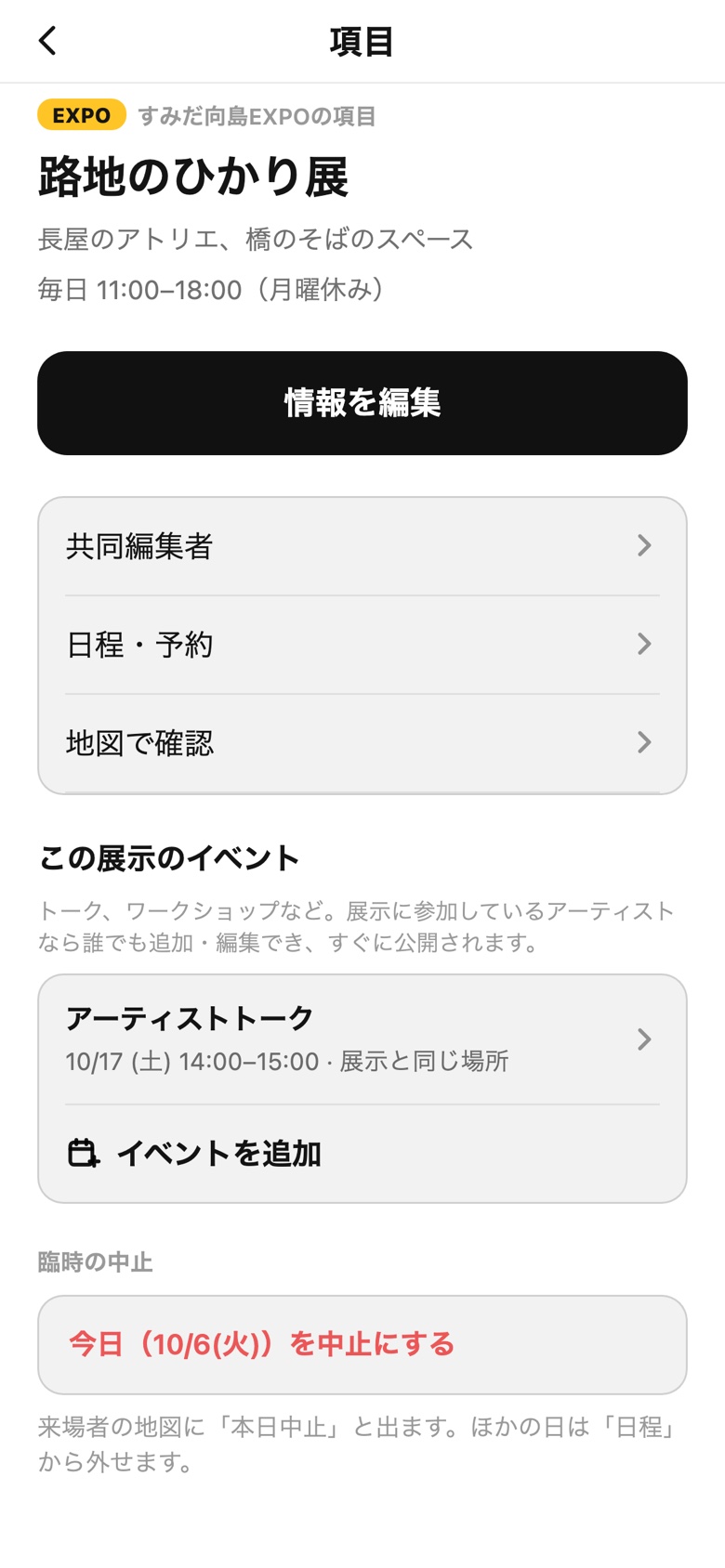
展示に参加しているアーティストなら、誰でも追加・編集できます。Any artist in the exhibition can add or edit its events.

この展示のイベント
この展示のイベント

追加したイベントは「この展示のイベント」に表示されます。タップすると編集できます。Your events are listed under この展示のイベント; tap one to edit it.

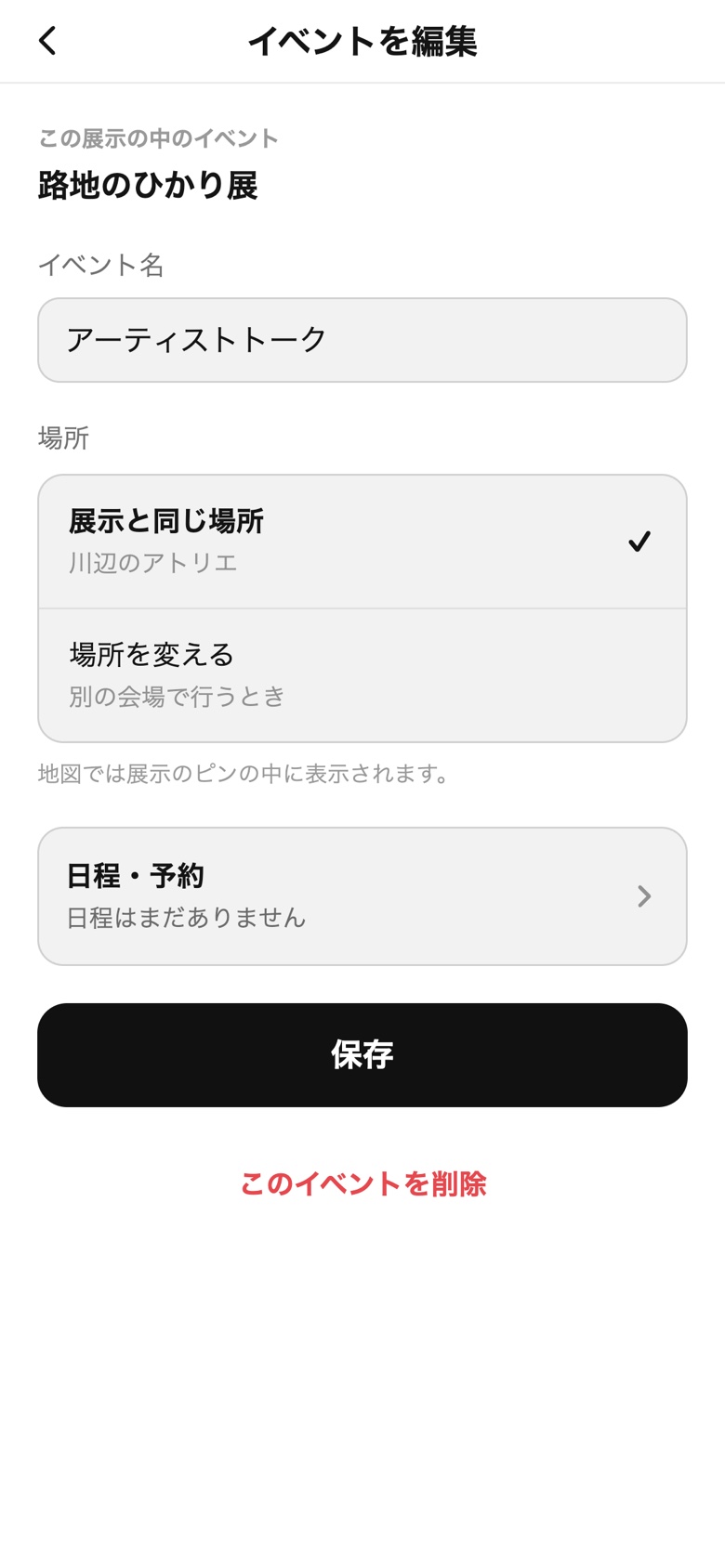
イベントを編集の一番下:このイベントを削除
このイベントを削除
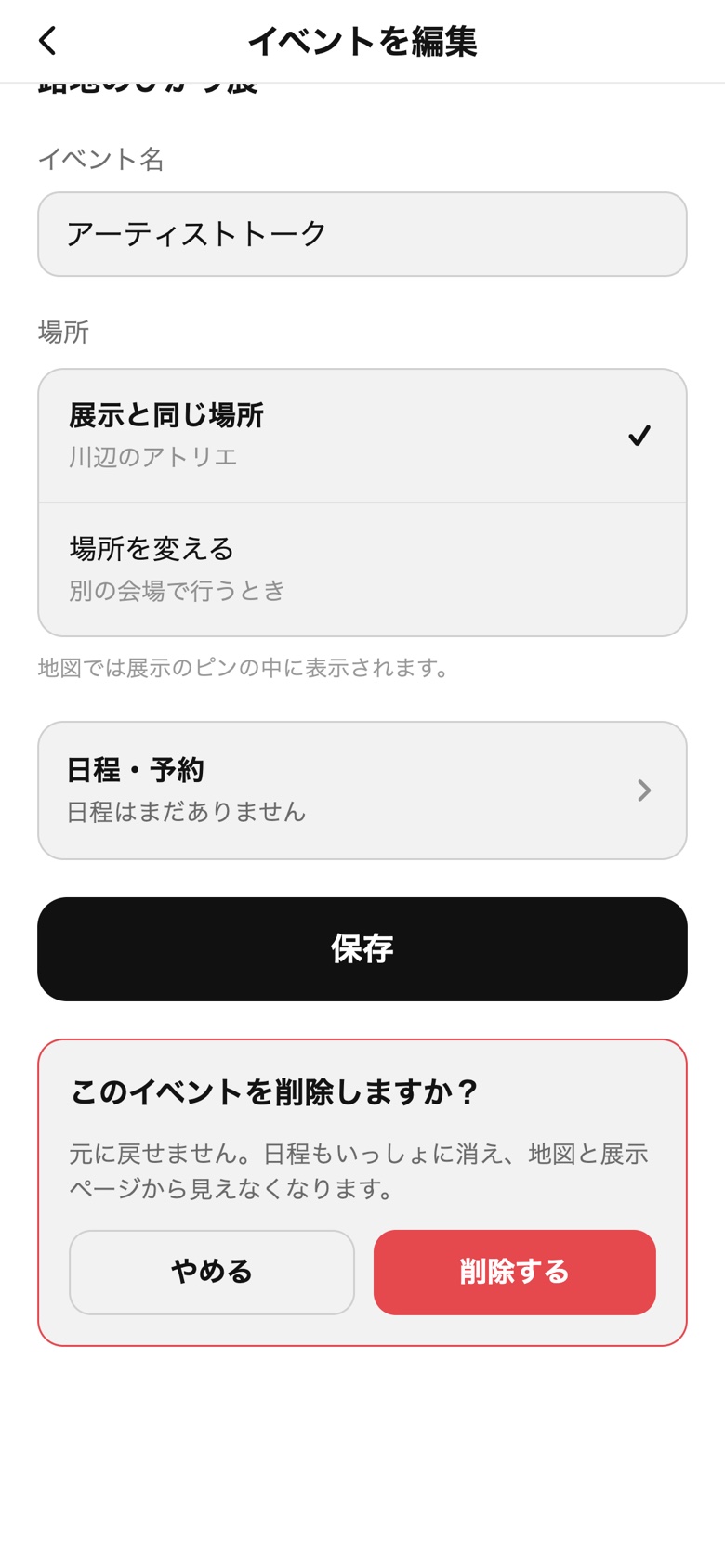
このイベントを削除しますか?:削除する
確認して削除

イベントを削除するDelete an event

  1. 「この展示のイベント」で、削除したいイベントを開くUnder この展示のイベント, open the event.
  2. いちばん下の このイベントを削除 を押すAt the bottom, tap このイベントを削除 (delete this event).
  3. 「このイベントを削除しますか?」と出たら 削除する を押すWhen asked このイベントを削除しますか?, tap 削除する (delete).

削除したイベントは元に戻せません。日程もいっしょに消え、地図と展示のページに表示されなくなります。A deleted event can't be brought back. Its days go too, and it no longer shows on the map or the exhibition page.

場所の選び方Choosing the place

展示と同じ場所Same place as the exhibition 場所を変えるAnother venue 1 ピンは1本。展示の中に表示 One pin; the event is listed inside it イベント専用のピンが別に表示される The event gets its own pin

通常は「展示と同じ場所」のままで構いません。地図で展示のピンを開くと、「この展示のイベント」に表示されます。別の会場で行う場合だけ、「場所を変える」で会場を選んでください。Usually leave it on 展示と同じ場所: on the map, the event is listed under この展示のイベント when visitors open your exhibition's pin. Only for an event held somewhere else, choose 場所を変える and pick the venue.

場所を変える:会場を選ぶ
場所を変える

日本語で書くと、ほかの言語に自動で翻訳されます。ご自分で書いた文章は、自動翻訳より常に優先されます。Write in Japanese and the other languages are filled in automatically. What you write always comes first.

05

ガイドルートを作るMake a guide route

ご自分の作品とお気に入りの場所をめぐる、散策ルートを作れます。作ったルートは、来場者が地図で見られます。作成は任意です。Draw a walking route that links your work and favourite spots; visitors see it on the map. It's optional.

アプリに参加フォームのメールアドレスでログインしてから始めてください。Start signed in to the app with your entry-form email.

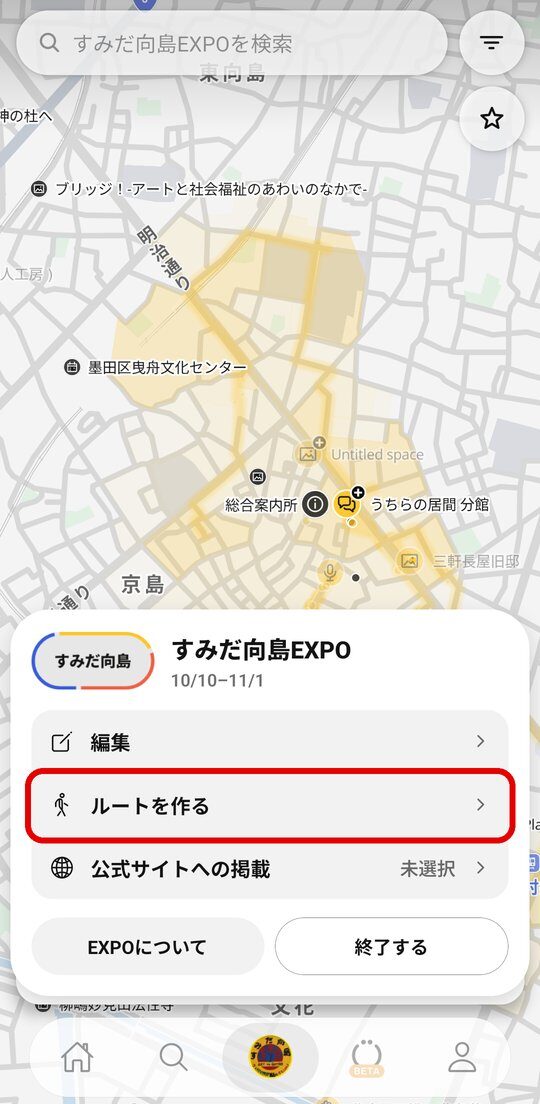
EXPOモードの地図:下のEXPOバッジをもう一度タップ
① EXPOバッジ
EXPOメニュー:ルートを作る
② ルートを作る
  1. EXPOモードの地図で、下のEXPOバッジ(地図タブ)をもう一度タップIn EXPO mode, tap the EXPO badge (the map tab) at the bottom once more.
  2. 開いたEXPOメニューで ルートを作る をタップIn the EXPO menu that opens, tap ルートを作る (make a route).
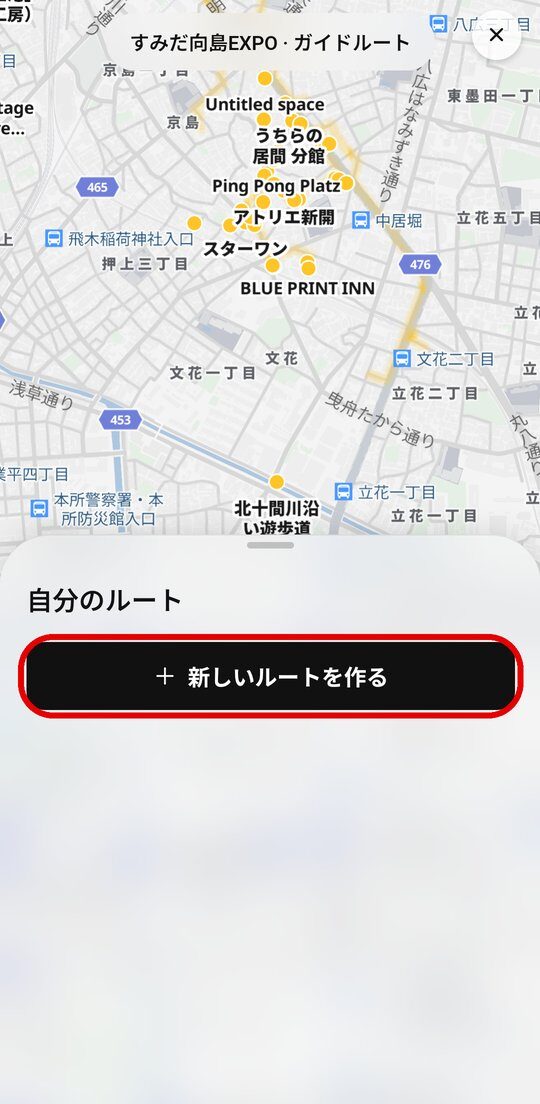
自分のルート:+ 新しいルートを作る
③ 自分のルート
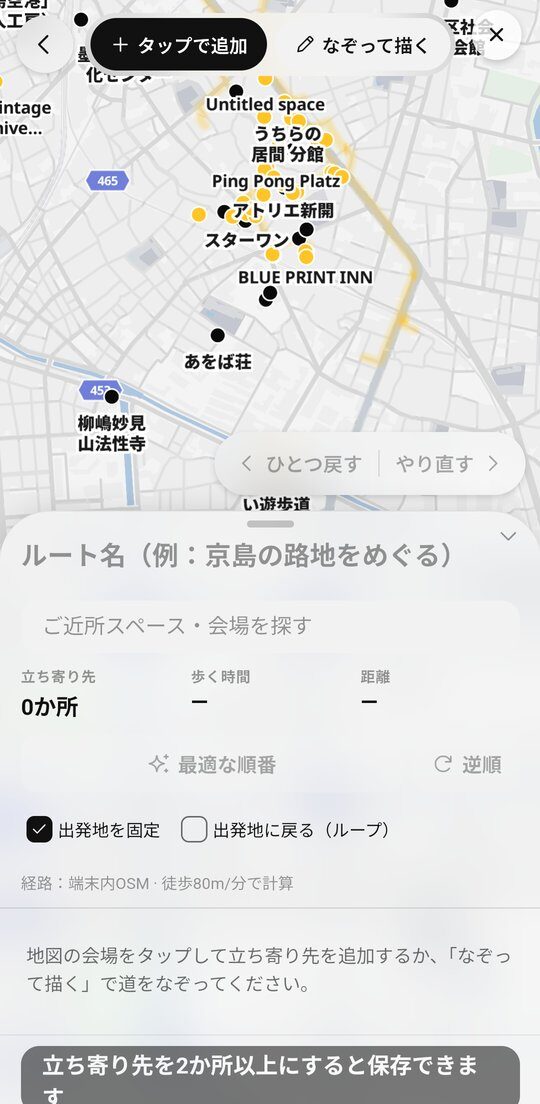
新しいルートの作成画面
④ 新しいルート
  1. 「自分のルート」が開きます。作ったルートが新しい順に並び、公開/非公開 が表示されます。続きを直すときはルートを開いて 編集。新しく作るときは上の + 新しいルートを作る自分のルート opens: your routes, newest first, each marked 公開 (public) or 非公開 (private). To continue one, open it and tap 編集 (edit). For a new one, tap + 新しいルートを作る at the top.
  2. 地図の会場をタップして立ち寄り先を足すか、「なぞって描く」で道をなぞります。立ち寄り先が2か所以上になると保存できます。Tap venues on the map to add stops, or trace the streets with なぞって描く. A route can be saved once it has 2 or more stops.

ウェブでも作れます:mukojima-expo.limboart.com/routes?new=1 を開き、参加フォームのメールアドレスでログインすると、同じ「自分のルート」が開きます。On the web: open mukojima-expo.limboart.com/routes?new=1 and sign in with your entry-form email; the same 自分のルート list opens.

スタッフの方もルートを作れます。Staff can make routes too.

ウェブで作る Make one on the web
06

わからないときはContact and FAQ

メール(長押しでコピーできます)Email (long-press to copy)

contact+mukojima-expo@limboart.com
EXPOメニューに「編集」が出ません

アプリを最新版にアップデートし、参加フォームのメールアドレスでログインしているか確認してください。No 編集 in the EXPO menu? Update the app and check you signed in with your entry-form email.

コードが届きません

迷惑メールフォルダを確認し、数分お待ちください。それでも届かない場合は、運営にご連絡ください。No code: check spam and wait a few minutes, then contact us.

間違えて今日を中止にした

プログラムのページの 中止を取り消す を押すと元に戻ります。Cancelled today by mistake: tap 中止を取り消す on your programme page.